
Introduction
Technology is changing classrooms, offices, and training spaces very quickly. In the past, teachers used chalkboards, marker boards, and projectors. Offices used simple whiteboards, printed reports, and basic display screens. Today, people need smarter tools that make teaching, learning, meetings, and presentations more interactive.
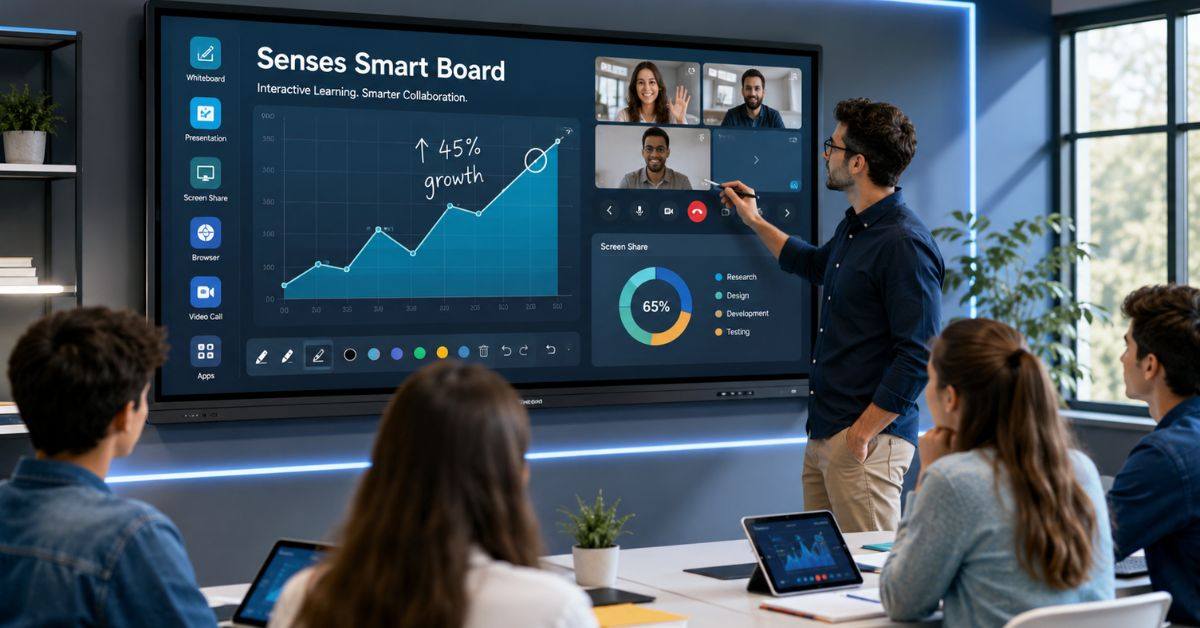
The Senses Smart Board is one of those modern tools. It is an interactive digital board that works like a large touchscreen display. It helps users write, draw, open files, play videos, share screens, browse the internet, and save notes. This makes it useful for schools, colleges, coaching centers, offices, training rooms, and conference halls.
A Senses Smart Board is more than a normal board. It supports digital learning, visual presentations, online classes, group discussions, and smart collaboration. This article explains its features, benefits, uses, buying tips, setup advice, and common mistakes to avoid.
What Is a Senses Smart Board?
A Senses Smart Board is an interactive touchscreen board used for teaching, meetings, presentations, and training. It works like a large digital screen where users can write and control content by touching the display.
Instead of using only markers or chalk, users can write with a finger or stylus. Teachers can open lessons, highlight text, play videos, and save notes. Office teams can show reports, write meeting points, and share ideas on the same screen.
Main things a Senses Smart Board can do:
- Work as a digital whiteboard
- Open PDFs, images, videos, and presentations
- Support touchscreen writing
- Allow wireless screen sharing
- Help with online classes and video meetings
- Save notes for later use
- Make lessons and meetings more interactive
In simple words, it combines a whiteboard, projector, screen, computer, and presentation tool in one device.
Key Features of Senses Smart Board
The Senses Smart Board comes with many useful features that make teaching and work easier. These features help users explain ideas clearly and save time during lessons or meetings.
Important features include
- Touchscreen writing: Users can write directly on the screen with a finger or stylus.
- Multi-touch support: More than one person can use the board at the same time.
- Digital whiteboard tools: Users can write, erase, draw shapes, change colors, and highlight points.
- File opening: It can open documents, images, videos, PDFs, and presentations.
- Screen sharing: The board can be linked to laptops, tablets, and cell phones.
- Internet access: Users can browse websites and open online learning material.
- Built-in speakers: Audio support helps with videos, online classes, and presentations.
- Recording option: Some smart boards allow users to record lessons or meetings.
- Annotation tools: Users can write notes over documents, slides, or images.
These features make the board useful for both education and professional communication.
Benefits of Senses Smart Board in Classrooms
The Senses Smart Board is very helpful for classrooms because it makes learning more visual and active. Students often understand better when they can see images, videos, diagrams, and live examples.
For example, a science teacher can show a diagram and explain each part clearly. A math teacher can solve questions step by step. An English teacher can highlight grammar rules and play audio examples.
Classroom benefits include
- Makes lessons more interesting
- Helps students understand difficult topics
- Supports visual learning with images and videos
- Allows teachers to save notes
- Helps absent students review lessons later
- Encourages students to participate
- Reduces the need for chalk, markers, and projectors
- Supports online and hybrid learning
A Senses Smart Board also helps different types of learners. Visual learners can understand through pictures. Auditory learners can learn through sound. Active learners can touch the screen and take part in activities.
Benefits for Offices and Meetings
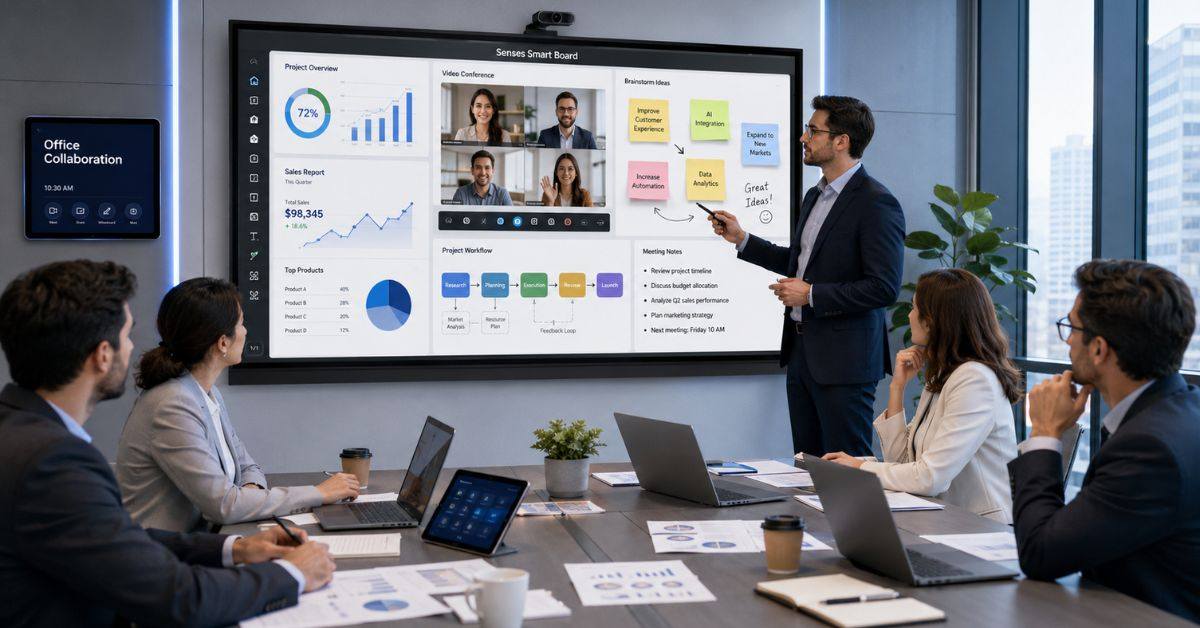
The Senses Smart Board is not only for schools. It is also useful for offices, companies, and business meeting rooms. Modern teams need clear communication, fast planning, and better collaboration.
In an office, the board can be used to show reports, explain charts, write ideas, and save meeting notes. It can replace a projector and whiteboard because everything can be done on one screen.
Office benefits include
- Makes meetings more organized
- Helps teams explain ideas visually
- Supports client presentations
- Makes brainstorming easier
- Saves meeting notes digitally
- Helps with remote and hybrid meetings
- Improves training sessions
- Reduces paper use
Common office uses include
- Project planning
- Sales presentations
- Team meetings
- Employee training
- Business reports
- Video conferences
- Workflow discussions
- Client demos
For hybrid teams, the board is especially helpful because remote members can view shared content and join discussions more easily.
Senses Smart Board vs Traditional Whiteboard
A traditional whiteboard is simple and easy to use, but it has limited features. You can write on it, but you cannot save notes, open files, play videos, or connect to the internet.
A Senses Smart Board offers more digital tools and better interaction.
| Feature | Traditional Whiteboard | Senses Smart Board |
| Writing method | Marker or chalk | Finger or stylus |
| Save notes | No | Yes |
| Play videos | No | Yes |
| Open files | No | Yes |
| Internet access | No | Yes |
| Screen sharing | No | Yes |
| Online class support | No | Yes |
| Best for | Basic writing | Digital teaching and meetings |
Main differences
- A whiteboard is good for simple writing.
- A smart board is better for digital learning and presentations.
- A whiteboard cannot save content.
- A smart board can save, share, and record content.
- A smart board supports multimedia and online tools.
This makes the Senses Smart Board a better choice for modern classrooms and offices.
Best Uses of Senses Smart Board
The Senses Smart Board can be used in many places because it supports teaching, training, presenting, and teamwork.
Best uses include
- Schools: For lessons, quizzes, diagrams, videos, and group activities.
- Colleges: For lectures, presentations, and research discussions.
- Coaching centers: For recorded classes and step-by-step problem solving.
- Offices: For meetings, reports, planning, and presentations.
- Training centers: For workshops, employee training, and skill development.
- Online classes: For remote teaching and digital lesson delivery.
- Creative teams: For brainstorming, design planning, and visual ideas.
- Conference rooms: For professional meetings and client discussions.
Real-life examples
- A math teacher can solve questions and save solutions.
- A science teacher can show animated diagrams.
- A business manager can explain sales reports.
- A trainer can record a session for employees.
- A team can brainstorm ideas and save them digitally.
This flexibility makes the board useful for many industries.
Buying Tips Before Choosing a Senses Smart Board
Before buying a Senses Smart Board, users should check their needs carefully. Every school, office, or training room has different requirements.
Important buying tips
- Choose the right screen size: Small rooms may need 65-inch boards, while large classrooms may need 75-inch or 86-inch boards.
- Check display quality: Clear resolution helps viewers read text easily.
- Test touch response: Writing should feel smooth and fast.
- Check software tools: The board should support writing, saving, recording, and file opening.
- Look at connectivity: HDMI, USB, Wi-Fi, Bluetooth, and Type-C ports are useful.
- Check speaker quality: Good audio is important for videos and online classes.
- Ask about warranty: A smart board is a long-term investment.
- Check after-sales service: Local support can save time if problems happen.
- Request a demo: Always test the board before buying.
During the demo, test:
- Writing speed
- Screen brightness
- Sound quality
- File opening
- Video playback
- Screen sharing
- Internet browsing
- Note saving
A demo helps buyers understand the real performance of the board.
Screen Size Guide
Choosing the correct screen size is very important. If the screen is too small, students or meeting members may not see the content clearly. If it is too large for a small room, it may feel uncomfortable.
| Screen Size | Best For | Room Type |
| 55-inch | Private tutoring | Small room |
| 65-inch | Small office or classroom | Small to medium room |
| 75-inch | Standard classroom | Medium room |
| 86-inch | Large classroom or training hall | Large room |
| 98-inch+ | Boardroom or auditorium | Very large room |
Simple size guide
- Use 55-inch for small tutoring rooms.
- Use 65-inch for small offices.
- Use 75-inch for normal classrooms.
- Use 86-inch for large classrooms.
- Use 98-inch or bigger for auditoriums.
For most schools, 75-inch and 86-inch boards are better because they provide clearer visibility for students sitting at the back.
Setup and Maintenance Tips
A Senses Smart Board works best when it is installed and maintained properly. Poor installation can make the board difficult to use.
Useful setup tips
- Install the board at a comfortable height.
- Keep it away from direct sunlight.
- Use a stable internet connection.
- Connect important devices before class or meeting.
- Keep the board close to power outlets.
- Make sure viewers can see the screen clearly.
- Use proper wall mounting or a strong stand.
Maintenance tips
- Clean the screen with a soft cloth.
- Avoid using sharp objects on the screen.
- Keep software updated.
- Use a surge protector for safety.
- Check cables and ports regularly.
- Save important files in cloud storage.
- Train users on basic tools.
Training is very important. Teachers and staff should learn how to write, erase, open files, share screens, save notes, and record lessons.
Common Mistakes to Avoid
Many people buy smart boards without proper planning. This can cause problems later.
Common mistakes include
- Buying only because the price is low
- Choosing the wrong screen size
- Ignoring touch quality
- Not checking software features
- Forgetting staff training
- Not testing screen sharing
- Ignoring warranty
- Not checking after-sales service
- Placing the board in bad lighting
- Using it only as a projector
How to avoid these mistakes:
- Make a checklist before buying.
- Understand your room size.
- Know your daily usage needs.
- Take a product demo.
- Compare features with price.
- Ask about support and warranty.
- Train teachers or office staff.
A smart board should make work easier, not more difficult. Good planning helps buyers get better value.
Is Senses Smart Board Worth Buying?
The Senses Smart Board is worth buying for schools, offices, coaching centers, and training rooms that want better digital communication. It makes lessons more engaging and meetings more productive.
It is useful for people who need:
- Digital teaching tools
- Better classroom interaction
- Visual presentations
- Online class support
- Saved notes
- Recorded lessons
- Business meetings
- Staff training
- Hybrid collaboration
However, it gives full value only when users know how to use it properly. If it is used only as a display screen, many features are wasted. Proper setup, training, and regular use are necessary.
For schools and offices that want modern learning and communication, the Senses Smart Board can be a smart investment.
FAQs
What is a Senses Smart Board?
A Senses Smart Board is an interactive digital board used for teaching, presentations, meetings, and training.
Can teachers save notes on it?
Yes, teachers can save written notes, lesson content, and sometimes recorded sessions.
Is it better than a normal whiteboard?
Yes, because it supports writing, videos, files, internet access, screen sharing, and saved notes.
Which size is best for classrooms?
For most classrooms, 75-inch or 86-inch screens are better because they are easier to see.
Can it be used in offices?
Yes, it is useful for meetings, presentations, planning, training, and video conferences.
Conclusion
The Senses Smart Board is a modern technology tool for classrooms, offices, training centers, and meeting rooms. It combines a touchscreen display, digital whiteboard, presentation tool, multimedia system, and collaboration platform in one device.
Its main benefits include better learning, clearer presentations, saved notes, screen sharing, online class support, and improved teamwork. Teachers can explain lessons more visually, and office teams can make meetings more organized.
Before buying, users should check screen size, display quality, touch response, software, connectivity, warranty, service, and training support. A demo is also important to test real performance.